Introduction
Argos uses the Evisions MAP Server to connect to Oracle Applications on Jerry. MAPS is on the BannerApps Server and you will be connecting to Jerry via BannerApps. MAPS communicates with your PC using an installed Client on your PC and it stores the Argos Queries, Forms, and Reports.
Step-by-step Setup
The following is step-by-step what you will need to do to use Argos from your PC.
Make a shortcut for Argos:
On your Desktop:
Right-Click, New, Shortcut and then paste in the following address:
http://bannerapps.uaex.edu:8081/argos/
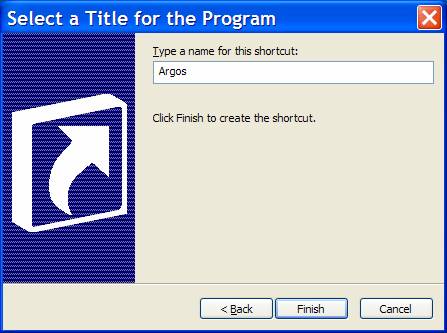
Select (Double-Click) your new Argos Shortcut.
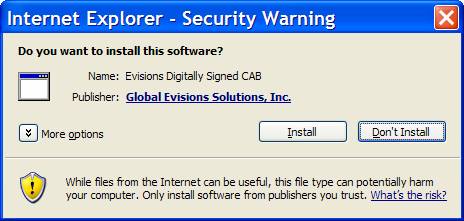
You will be presented with a Security Warning dialog box asking you to install and run the Argos Client. Click the Install button to trust the certificate from "Global Evisions Solutions, Inc.". Whenever the Client is updated, you will have this same dialog box presented when you try to Login (This should not happen often.)
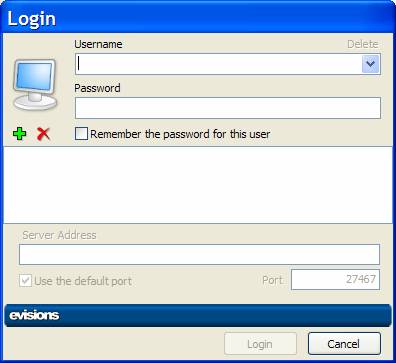
Username is your Banner Username.
Password is your Username + the Last 4 digits of your SSN.
e.g., ballen9999 (no space and no +)
Do not select “Remember the password for this user”. The
next time you login you will be using your current Jerry_Apps password.
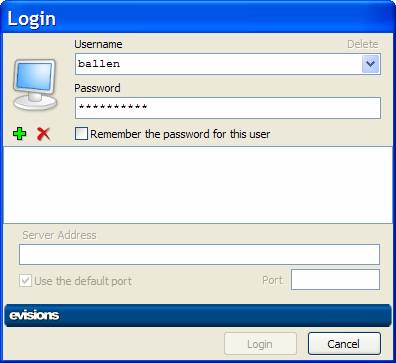
Select the Green +
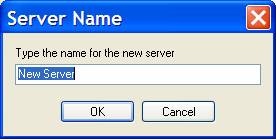
Enter BannerApps
(We will get to Jerry later:)
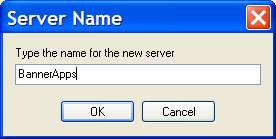
And select OK
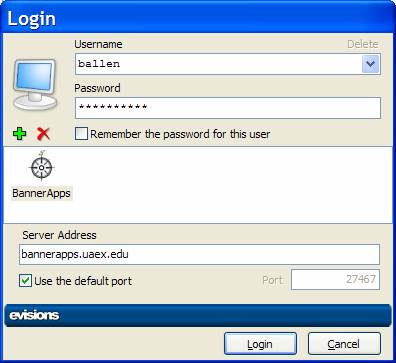
Enter the Server Address bannerapps.uaex.edu
Do “Use the default port”.
If you see:
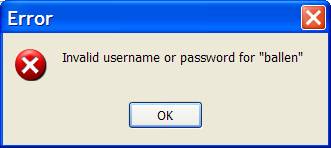
You probably have missed the username or more likely the one-time Argos setup password. Try again:
Username is your Banner Username. e.g., ballen for Bob
Allen.
Password for only this Login is your Username+Last 4 digits
of your SSN.
e.g., ballen9999 (no spaces and do not include the +)
Only selected Banner Users have access to Argos. If you have not been invited to use Argos, then you are unlikely to be setup for using Argos. Contact bknox @t uaex.edu
To use Argos, you must allow the Argos client software to be installed on your PC. This is quick, but it does require that you allow the change and accept the Evisions Security Certificate. This is very similar to starting a Bomgar (NetworkStreaming) session with support.uaex.edu but this Argos client will remain on your PC. Your next login will be much simpler and quicker.
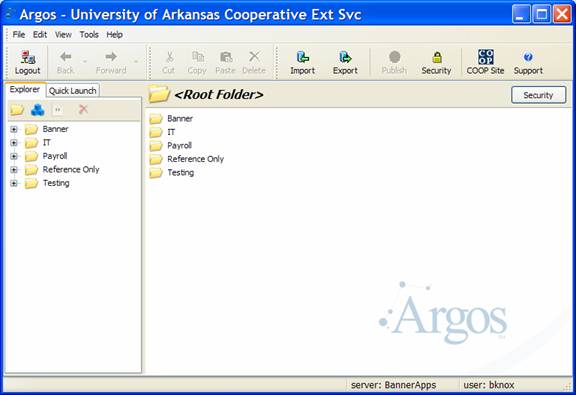
Click on Tools in the Menu Bar. Select Change Password …
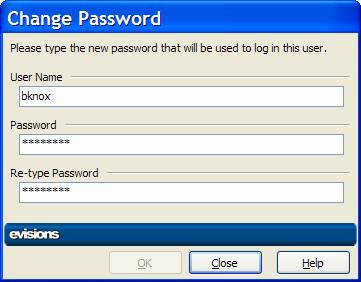
Now is the time to change the password to your current Jerry_Apps Password. Argos will encrypt and store this Password in the MAP Server.
When you next Login to Argos, do use your Jerry_Apps Password.
Your ability to see, use, or modify the Folders and their contents depends upon the Argos Security established for you by the Argos Administrator. You most likely will be given access to one Folder based upon your Functional Area in Extension. Security within Argos is in addition to your Jerry_Apps Security. You may see less information than you see from Jerry_Apps.
This is an internal use page maintained by Bruce Knox ( bknox at uaex.edu ) documenting a single University of Arkansas, Division of Agriculture, Cooperative Extension Service IT project.